Comprehensive AirTag F.A.Q.

General Information and Introduction
Apple has not published a formal “inspiration statement” for AirTag, but the purpose is clear from the product itself: help people keep track of everyday items like keys, bags, luggage, and wallets through the Find My network.
That goal still defines AirTag today, even though the current lineup now includes AirTag (2nd generation) with improved nearby-finding hardware.
The original AirTag was announced on April 20, 2021 and became available on April 30, 2021.
Apple introduced AirTag (2nd generation) on January 26, 2026.
AirTag is Apple’s compact item tracker for belongings such as keys, wallets, bags, and luggage. It works with the Find My app and Apple’s Find My network.
If the AirTag is nearby, you can use tools like Play Sound or, with a supported device, Precision Finding / Find Nearby. If it is farther away, nearby Apple devices can detect the AirTag and securely relay its location to you through the Find My network.
- Find My network: Lets nearby Apple devices help relay your AirTag’s location securely.
- Precision Finding / Find Nearby: Helps guide you to a nearby AirTag with direction and distance on supported devices.
- Play Sound: Helps you find an item when it is close.
- Lost Mode / Show Contact Info: Lets a finder view your contact details if you mark the item as lost.
- Privacy and safety features: End-to-end encryption, changing Bluetooth identifiers, and unwanted-tracking alerts.
- User-replaceable battery: Uses a CR2032 coin cell battery instead of charging.
- Current AirTag improvements: AirTag (2nd generation) adds a longer Bluetooth range, a louder speaker, and improved nearby finding.
AirTag is broadly usable in many countries and regions where Apple services and the Find My ecosystem operate, but some features can vary by country or region.
That is especially true for Ultra Wideband, which Apple says varies by region. So the safest answer is: basic AirTag use is widely supported, but feature availability is not perfectly identical everywhere.

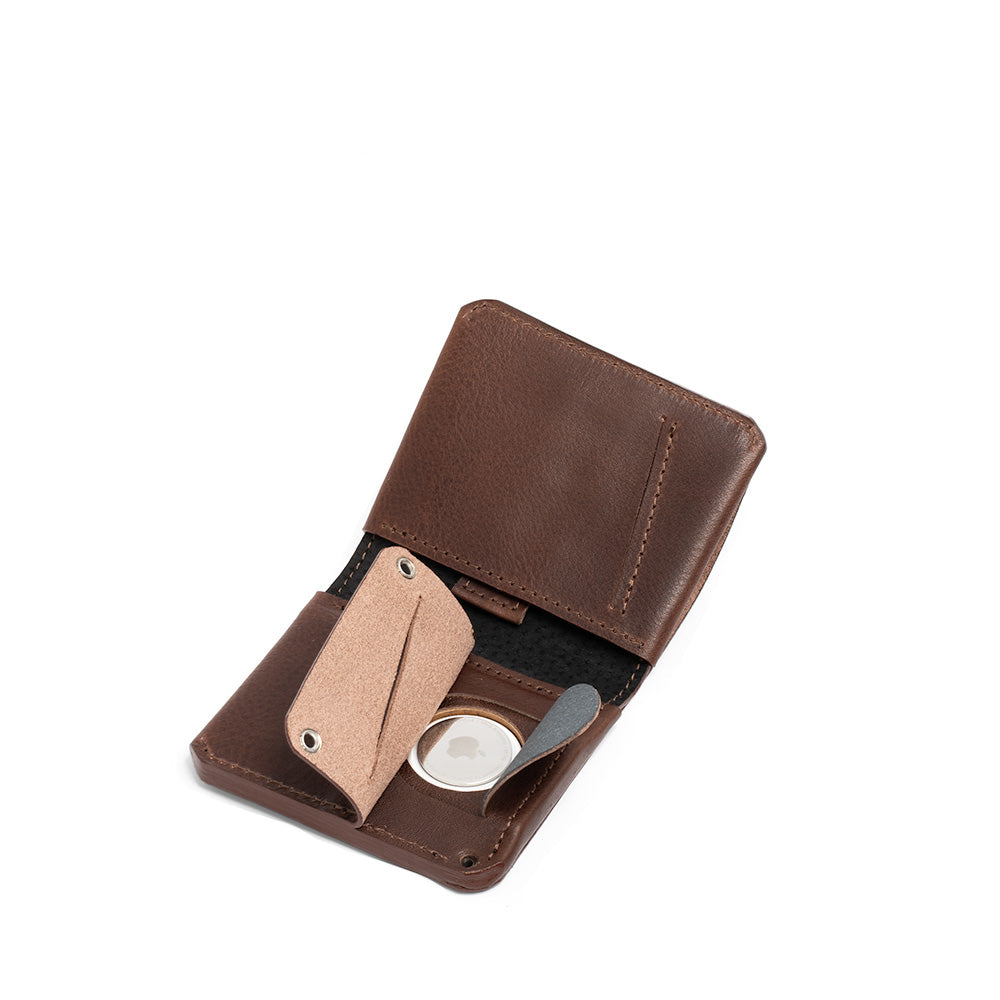
Our AirTag Wallets are designed to make your experience stress-free thanks to its secret AirTag pocket.
Design and Appearance
AirTag is a round, disc-shaped tracker with a white front and a polished stainless steel back.
For the current AirTag (2nd generation), Apple lists these dimensions:
- Diameter: 31.9 mm / 1.26 in
- Height: 8.0 mm / 0.31 in
- Weight: 11.8 g / 0.42 oz
The original 2021 AirTag was slightly lighter at 11 g.
AirTag is compact and simple to handle, but it is best described as easy to carry rather than traditionally ergonomic.
Its smooth round shape is unobtrusive, but the polished back can be slippery. In real life, many people find it easier to use with a holder, loop, key ring, wallet slot, or dedicated pocket.
There is no single required “correct” outward side. It depends on the accessory you use.
Many holders show the white engraved face outward, while other accessories cover more of the AirTag and leave either side partially visible. Functionally, both sides can work as long as the AirTag is seated securely and the accessory does not block normal use.
Yes. If you buy from Apple, AirTag supports free engraving. You can also customize the look with cases, loops, key rings, wallet slots, holders, and other accessories.
Just avoid modifications that could damage the AirTag or interfere with its speaker, battery cover, or normal NFC use.
Apple’s AirTag still comes in the same core design language rather than in multiple official body styles or official limited-edition finishes.
In practice, most visual customization comes from engraving and accessories rather than from multiple factory designs.
Apple has not announced future design changes beyond the current generation. What we can say today is that AirTag (2nd generation) keeps the same basic form factor while improving the internals and nearby-finding performance.
Range and Accuracy
AirTag does not have one simple official maximum range. It works in two different ways:
- Nearby finding: Bluetooth and Ultra Wideband help you find an item that is close to you.
- Find My network finding: If the item is far away, nearby Apple devices can detect it and relay its location.
That is why an AirTag can sometimes be found from far away through the Find My network, while local nearby-finding distance is still limited by walls, layout, and conditions.
AirTag Precision Finding Range Test:
The figures below are best treated as a practical first-generation AirTag test, not as an official Apple distance specification:
- Open space: Max 82 ft (25 m), stable at 65.6 ft (20 m), direction at 33 ft (10 m).
- Inside, no partitions: 65.6 ft (20 m).
- Behind glass & wood: 50 ft (15 m).
- Through three wood layers: 20 ft (6 m).
- Concrete wall: 10 ft (3 m).
- Thick wall: 3.3 ft (1 m).
For the current lineup, Apple says AirTag (2nd generation) has a longer Bluetooth range and Precision Finding from up to 50% farther away than the previous generation.
Yes. AirTag can be located internationally through Apple’s Find My network, not just near your own iPhone.
The practical limitation is not “cross-border tracking” itself, but whether there are enough nearby Apple devices to relay location updates in that area.
AirTag can work well indoors, especially when the item is nearby and you can use Play Sound or Find Nearby on a supported device.
However, indoor performance is affected by walls, furniture, floors, cabinets, and layout. The current AirTag improves nearby finding, but indoor tracking is still shaped by the physical environment.
Yes. In dense urban areas, AirTag often performs better because more Apple devices are nearby to detect it and relay its location through the Find My network.
In rural or low-density areas, updates can be slower or less frequent simply because fewer compatible devices pass near the item.
AirTag often performs well in crowded places because the Find My network has more nearby devices available to detect the tracker.
At the same time, crowded indoor spaces can still complicate nearby finding because walls, floors, bags, and physical clutter affect local radio performance.
AirTag does not “see through” obstacles. Nearby finding is affected by walls, objects, furniture, and other materials between your iPhone and the AirTag.
That does not stop the Find My network from helping overall, but it can reduce the speed or precision of nearby tracking in homes, offices, vehicles, or luggage.
AirTag and GPS trackers solve different problems.
AirTag is excellent for everyday item finding in the Apple ecosystem, especially in places where many Apple devices are nearby. Dedicated GPS trackers are better for continuous real-time tracking, vehicles, or remote areas where you want more direct coverage.
If you need live, self-powered satellite/cellular location reporting, use a GPS tracker. If you want a simple, compact item finder for keys, bags, luggage, or wallets, AirTag is often the better tool.
AirTag can be very accurate nearby when you use supported devices for Precision Finding or Find Nearby. When the item is farther away, accuracy depends more on when the AirTag is seen by the Find My network.
So the best short answer is: very accurate nearby, network-dependent at a distance.
AirTag uses a combination of:
- Bluetooth for proximity finding and Find My network detection
- Ultra Wideband for more precise nearby finding on supported devices
- Find My network to relay the item’s location through nearby Apple devices
- Built-in speaker to help you locate the item by sound
Durability and Maintenance
AirTag uses a white plastic front, a polished stainless steel back, and internal components such as its speaker, accelerometer, Bluetooth hardware, battery system, and nearby-finding electronics.
AirTag is built for normal everyday handling and minor drops, but Apple does not market it as a rugged or military-rated impact tracker.
For items that get knocked around often, a protective holder or case is still a good idea.
Yes. AirTag is rated IP67, and the “6” in that rating means it is protected against dust ingress under the IEC 60529 standard.
Not really. In normal use, the polished metal back and the plastic face can both pick up scratches and scuffs over time.
If you care about keeping it cleaner-looking, an accessory or holder helps.
Apple lists an operating ambient temperature range of -20° to 60° C (-4° to 140° F).
That does not mean every extreme scenario is equally safe. Heat, repeated moisture exposure, impact, pressure, and harsh environments can still shorten the useful life of the AirTag or its battery.
Frequent everyday use should not drastically shorten the device’s life on its own. The biggest wear points are usually battery age, scratches, physical damage, water exposure, and harsh handling rather than simple normal use.
- Avoid prolonged exposure to extreme heat or cold.
- Avoid deliberate rough water use, salt water, or chlorinated water exposure.
- Avoid crushing pressure or severe impact.
- Avoid incompatible or poor-quality batteries.
- Avoid modifications that interfere with the speaker, battery cover, or NFC use.
Clean it as needed with a soft, dry, lint-free cloth. If it has been in a dirty or damp environment, remove it from its holder and wipe it dry before putting it back.
Avoid abrasive cleaners, solvents, and unnecessary liquid exposure.
Compatibility
For the original AirTag, Apple requires iOS or iPadOS 14.5 or later.
To add AirTag (2nd generation), Apple says you need iOS or iPadOS 26.2.1 or later.
For the broadest current answer, Precision Finding / nearby finding depends on Ultra Wideband support and region availability.
Apple says Ultra Wideband is available on:
- iPhone 11 models
- iPhone 12 models
- iPhone 13 models
- iPhone 14 models
- iPhone 15 models
- iPhone 16 models except iPhone 16e
- iPhone 17 models except iPhone 17e
- iPhone Air
For improved Precision Finding with AirTag (2nd generation), Apple specifically says it works with iPhone Air or iPhone 15 and later, excluding iPhone 16e, with availability varying by region.
Yes. You can use AirTag with an iPad for setup and tracking in Find My, as long as the iPad meets the required iPadOS version.
However, iPad is not the same as a supported nearby-finding iPhone experience.
Yes. A Mac can show the AirTag in Find My and help with map-based locating.
What it does not replace is the full nearby-finding experience you get on supported iPhone hardware.
Yes. Apple Watch can help you locate AirTags and other items in the Find Items app.
It can also support features like Notify When Left Behind and Lost Mode. For Precision Finding on Apple Watch, Apple says you need Apple Watch Series 9 or later or Apple Watch Ultra 2 or later, together with the newer AirTag and current software.
Not for full setup and ownership. AirTag is designed to be set up and managed inside Apple’s ecosystem.
However, any NFC-capable smartphone can read a found AirTag and open the owner-information webpage when applicable.
Older supported iPhones can still handle the basic AirTag experience such as setup, map location, and Play Sound, as long as they meet Apple’s software requirements.
What older iPhones may miss is the more advanced nearby-finding experience that depends on Ultra Wideband.
Android cannot be used to set up and fully manage an AirTag in the way iPhone or iPad can. There is no full Find My ownership experience for Android users.
What Android can do today:
- Receive automatic unwanted-tracker alerts on supported Android devices
- Run manual scans for unknown trackers
- Use Apple’s Tracker Detect app
- Tap a found AirTag with an NFC-capable Android phone to see owner / lost-item information
Yes. You can manage multiple AirTags from one Apple Account in the Find My app.
Apple’s current Find My limit is up to 32 items, including shared items and some AirPods models that also count toward the total.
No, not as a normal supported ownership or tracking workflow. AirTag is designed around Apple’s Find My ecosystem.
Usage
Yes, but the practical current limit is no longer the old “16 AirTags” answer.
Apple now says you can add up to 32 items in Find My, including shared items and accessories. AirPods can also count toward that total, depending on model.
AirTag works best on everyday belongings such as keys, bags, backpacks, wallets, luggage, and other personal items that you are likely to misplace or leave behind.
It is best when used for items, not as a substitute for a dedicated child, pet, or vehicle tracking system.
It depends on the wallet. AirTag is compact, but it is still much thicker than a normal card.
It fits best in wallets designed specifically for AirTag or in styles with a dedicated AirTag pocket. In very slim wallets, it can create a noticeable bulge.
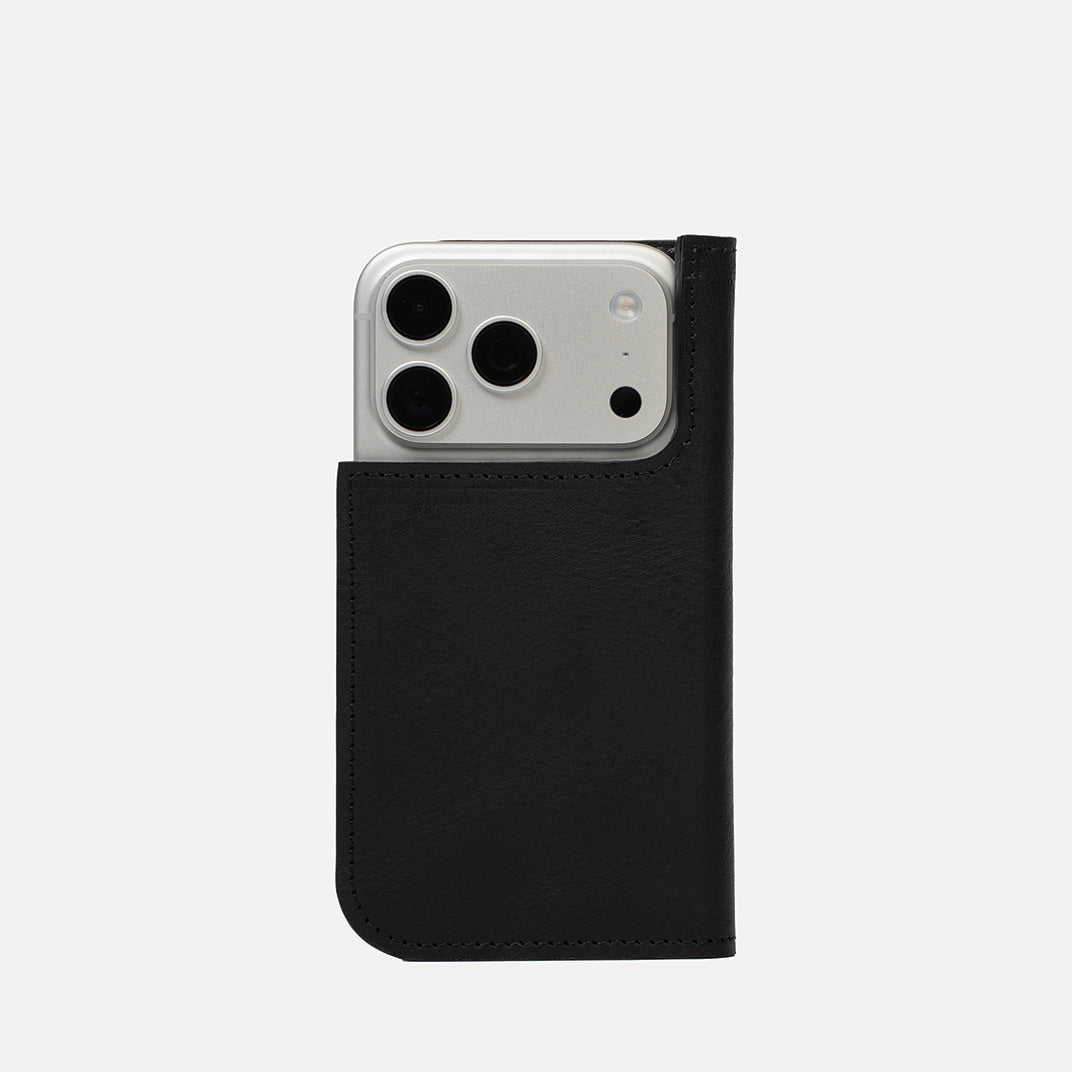
Geometric Goods makes wallets with a secret AirTag slot. You can find them here.
They can be worth it if you want a cleaner, more secure way to carry an AirTag without loose add-ons or an obvious bulge.
The biggest benefit is not “better tracking” but better carry integration: less movement, less bulk, and a more discreet way to keep the AirTag with your wallet every day.
Yes, but one important correction: AirTag does not have a built-in keyring hole.
To attach it to keys, bags, or similar items, you need a holder, loop, key ring, or case designed for AirTag. You can explore compatible accessories such as keyring loops, clips, cases, and holders at this collection.
Yes, AirTag is commonly used inside luggage, including checked bags. It can be very helpful for seeing where your bag was last detected through Find My.
That said, AirTag is still not a real-time cellular tracker, and airline rules can vary by carrier and region. Use it as a smart luggage finder, not as guaranteed live baggage telemetry.
AirTag can help you locate a parked or missing car indirectly, especially in areas with strong Find My network coverage.
But it is not the same as a dedicated vehicle GPS tracker. For reliable live vehicle tracking, a purpose-built GPS/cellular tracker is the better choice.
You can attach an AirTag to a pet collar, and many people do. But Apple positions AirTag for items, not as a dedicated pet tracker.
For calm pets in Apple-dense environments it can be useful. For escape-prone pets, rural areas, or situations where you need faster live updates, a dedicated pet tracker is usually better.
For more detail, see this guide.
Sometimes, yes — but it is not ideal for continuous live tracking of moving objects.
AirTag updates depend on nearby devices in the Find My network, so fast-moving items or remote routes may produce delayed or intermittent updates rather than a smooth real-time trail.
You can physically attach an AirTag to a drone or another moving object, but it is usually not the best tracker for that job.
If the object goes far from populated areas or beyond nearby Apple devices, AirTag becomes much less dependable than a dedicated GPS or LTE tracker.
Purchase and Packaging
You can buy AirTag directly from Apple or from reputable authorized resellers and major electronics retailers.
Apple’s official store page is still the cleanest reference point if you want the current model, current pricing, and free engraving where offered.
Apple still offers a better per-unit value in the four-pack than with single units.
On Apple’s U.S. store, the current price is $29 for one AirTag and $99 for a four-pack. Pricing varies by country and store.
Yes. AirTags are sold through Apple and through other reputable retailers and authorized resellers.
If authenticity and warranty handling matter to you, buy from Apple or a trusted seller.
The box includes the AirTag with its CR2032 battery already installed, plus documentation.
Accessories such as key rings, holders, or loops are sold separately.
If you buy directly from Apple, returns are handled under Apple’s local sales and returns policy for your country or region.
The exact window and conditions can vary by market, so it is best to check the current Apple Store policy where you are buying.
Yes, in many Apple Store regions you can buy AirTag as a gift and ship it to another address during checkout. Availability and shipping options vary by country and store.
Setup and Configuration
- Make sure your iPhone is on a supported iOS version.
- Turn on Bluetooth and Location Services.
- Hold the AirTag near your iPhone after removing the battery tab.
- Tap Connect when the setup prompt appears.
- Choose a name or create a custom name.
- Register it to your Apple Account.
- Find it later in the Find My app under Items.
No. AirTag setup requires a supported iPhone or iPad.
To fully reset an AirTag:
- Press down and twist the stainless steel cover counterclockwise to open it.
- Remove the battery.
- Reinsert the battery and press down until you hear a sound.
- Repeat the remove/reinsert step until you hear a total of five sounds. The fifth sound is different and means the AirTag is ready to pair again.
- Replace the cover.
If you have an AirTag (2nd generation), Apple says to wait at least 5 seconds after removing the battery before inserting it again.
Yes. In Find My, go to Items, select the AirTag, and edit its name from the item details.
If you are moving to a new iPhone but keeping the same Apple Account, the AirTag should appear automatically in Find My once your account is set up on the new phone.
If you are moving the AirTag to a different owner or different Apple Account, remove it from Find My first, then reset it before pairing again.
Yes. One Apple Account can manage multiple AirTags, subject to the current overall Find My item limit.
Open Find My, tap Items, and confirm that the AirTag appears there. You can test it by viewing its map status or using Play Sound if it is nearby.
- Open Find My.
- Tap Items.
- Select your AirTag.
- Scroll down and tap Remove Item.
This removes the AirTag from your Apple Account so it can be transferred or re-paired.
Functionality and Features
AirTag lives inside the Find My app, under the Items tab.
From there you can:
- See the item’s current or last known location on a map.
- Tap Play Sound if it is nearby.
- Use Find Nearby / Precision Finding on supported hardware.
- Turn on Lost Mode / Show Contact Info.
- Set up Notify When Left Behind and Notify When Found.
AirTag does not have a fixed public update schedule like “every minute.”
Apple’s current guidance is simpler: the location updates when the AirTag connects to the Find My network. In dense areas, that can happen more often. In remote areas, updates can be much less frequent or stop until another device detects it.
Yes. AirTag can play sound in several normal situations:
- When you tap Play Sound in Find My
- During setup / reset confirmation
- As part of unwanted-tracking safety behavior when an AirTag is separated from its owner and moving with someone else
There is no supported Apple setting to permanently mute all AirTag sounds.
You can silence some phone-side notifications, but the AirTag’s built-in safety sounds are not meant to be fully disabled. Physically altering the speaker is not recommended.
Yes. AirTag can be shared in Find My with up to five other people, for a total of six users per item including the owner.
This is useful for shared keys, bags, or other household items. Learn more here: Learn the Step-by-Step Guide to Share AirTags.
Yes, in limited but useful ways. You can ask Siri things like “Where are my keys?” if the AirTag is named “keys,” and Siri can also help you play a sound on a nearby AirTag.
Yes. In Find My, you can use Notify When Left Behind and set Trusted Locations where alerts should not fire.
- Open Find My, then tap Items.
- Select your AirTag.
- Turn on Notify When Left Behind.
- Add or edit Trusted Locations if needed.
You can also manage this from Apple Watch in the Find Items app.
AirTag beeps mainly for two reasons:
- You asked it to: for example, by tapping Play Sound in Find My.
- Safety behavior: if an AirTag is separated from its owner and appears to be moving with someone else, it can emit a sound to help prevent unwanted tracking.
Setup, reset, and battery handling can also trigger confirmation sounds.
No. AirTag itself does not have a dedicated Do Not Disturb mode.
Your iPhone’s Focus modes can affect some alerts you receive on the phone, but they do not remove the AirTag’s own safety behavior.
Eventually, it can. AirTag is not designed as a stealth anti-theft tracker.
If an AirTag is separated from its owner and appears to be moving with someone else, it may emit a sound, and supported devices can receive unwanted-tracking alerts. That is why AirTag can help with lost-item recovery, but it is not ideal if you need covert theft tracking.
Not as a built-in full travel history in Find My.
Find My shows the current location if available, or the last known location and timestamp. Apple also says AirTag does not physically store location history on the device itself.
If you are highly technical, third-party experiments such as Daniel Palma’s dashboard project exist, but that is not standard built-in Apple functionality: Apple AirTag Location History Data Pipeline - Dog Tracking Dashboard.
Water Resistance
AirTags are water-resistant, not waterproof.
They are rated IP67, meaning they were tested under controlled conditions for submersion up to 1 meter for up to 30 minutes. Water resistance can decrease over time.
Yes, normal rain or snow is usually within the kind of brief exposure that AirTag is built to tolerate. Just do not treat it as a device meant for deliberate long-term wet use.
Some AirTags do survive accidental laundry, but Apple does not rate AirTag for washing-machine use.
So the fresh answer is: sometimes yes in real life, but you should not rely on it or treat it as a supported scenario.
Apple’s lab rating is up to 1 meter for up to 30 minutes in fresh water under controlled conditions. That is the right limit to cite, not more.
Yes, they can get wet to a limited degree, because they are IP67 water-resistant.
If yours gets wet, dry it thoroughly and see this guide for drying advice.
AirTag is rated for brief fresh-water exposure, not for repeated salt-water or chlorinated-water use.
Salt and pool chemicals can be harsher than fresh water, so it is best to avoid deliberate exposure.
Not as a recommended use case. AirTag can survive brief accidental fresh-water exposure better than many people expect, but it is not designed as a surfing, swimming, or watersports tracker.
Water resistance itself does not improve or reduce tracking. The issue is whether water exposure damages the AirTag over time. If the AirTag remains fully functional, tracking works normally. If water gets in or corrosion develops, reliability can drop.
Troubleshooting
Start with the most common causes:
- Bluetooth is off on your iPhone or iPad.
- Location Services or Find My permissions are off.
- The battery is low or incompatible.
- The AirTag has not been set up correctly or is still registered to someone else.
- Your iPhone or iPad software is too old for the AirTag you are trying to use.
- The AirTag needs a reset.
To fully reset it:
- Remove it from Find My if you are transferring ownership.
- Open the battery cover by pressing down and rotating it counterclockwise.
- Remove and reinsert the battery until you hear a total of five sounds.
- Close the cover and pair it again.
Two things matter here:
Location updates: AirTag does not update on a fixed timer. It updates when it connects to the Find My network.
Firmware updates: AirTag firmware updates are handled automatically. There is no normal manual “Update” button in Find My. The practical checklist is to keep your iPhone or iPad updated, keep Bluetooth and Location Services on, and keep the AirTag near your device when possible.
- Make sure Bluetooth is on.
- Keep the AirTag near your device while testing.
- Restart your iPhone or iPad.
- Check battery status or replace the battery.
- Verify that Location Services and Find My access are enabled.
- Reset the AirTag if necessary.
Common reasons include:
- The AirTag was never fully paired.
- The AirTag is still registered to another Apple Account.
- Your device software is too old.
- Bluetooth or Location Services are off.
- The battery is weak or incompatible.
- You reached the current Find My item limit.
- The AirTag needs to be reset.
Use Apple’s current safety flow rather than older “phantom alert” workarounds:
- Tap the alert.
- Choose Continue.
- Use Play Sound or, if available, Find Nearby.
- Review the map and Items Detected With You history in Find My.
- If the item is not with you anymore, it may have changed identifier or gone back near its owner.
- If you believe your safety is at risk, contact law enforcement.
Apple’s current limit is 32 items in Find My, including shared items and some AirPods models.
If you see a maximum-items error:
- Review the items already in Find My.
- Remove items or accessories you no longer need.
- Then try adding the AirTag again.
The older workaround advice about deleting AirPods or signing out of iCloud is no longer the clean first answer.
- Open Find My and choose the AirTag under Items.
- Check the map and the timestamp.
- If it is nearby, use Play Sound or Find Nearby.
- If it is not nearby, use Directions, Notify When Found, and Lost Mode / Show Contact Info.
- Open Find My.
- Tap Items.
- Select the AirTag.
- Scroll down and tap Remove Item.
- Open Find My and check the item’s current or last known location.
- Turn on Lost Mode / Show Contact Info.
- Use Notify When Found.
- If theft is involved, contact law enforcement and avoid confrontation.
AirTag can help with recovery, but it is not a guaranteed anti-theft solution.
This alert means an AirTag that is not registered to you appears to be moving with you.
- Tap the alert and review the map.
- Use Play Sound or Find Nearby if available.
- Check your belongings, clothing, bags, and vehicle carefully.
- If you find the AirTag, use the on-screen instructions to identify or disable it.
- If you believe your safety is at risk, go to a safe public place and contact law enforcement.
To stop the AirTag from reporting location, follow Apple’s disable instructions, which can include removing the battery.
Battery and Power
Yes. AirTag uses a user-replaceable CR2032 coin cell battery.
One important update: Apple no longer advises simply “avoiding bitter coating.” Its current guidance is to look for a bitterant-coated CR2032 whose packaging says Compatible with Apple AirTag, because some coated batteries may not work correctly.
Your iPhone can notify you when the AirTag battery is low.
In Find My, if the battery is low, you see Low Battery under the AirTag’s name.
Yes, but the current practical answer is more limited than some older articles suggest.
Find My shows when the battery is low. It does not provide a consumer-facing exact battery percentage for AirTag in the way some people expect.
AirTag is already designed for low-power everyday use. The most useful battery-life tips are simple:
- Avoid prolonged extreme heat or cold.
- Replace the battery promptly when it becomes low.
- Use a compatible CR2032 battery.
There is no dedicated power-saving mode you need to manage manually.
Yes. Like other coin-cell batteries, CR2032 batteries gradually age in use and storage. In practice, AirTag usually works normally until the battery is near depletion, then you get a low-battery warning and replace it.
It is best to use the standard non-rechargeable CR2032 battery type that Apple specifies. Rechargeable coin-cell alternatives are not the normal recommended choice for AirTag.
Extreme cold and extreme heat can shorten effective battery life or reduce performance. Apple lists an operating ambient temperature range of -20° to 60° C (-4° to 140° F), but that does not mean battery efficiency is identical at the extremes.
Sharing and Connectivity
Yes, but with limits. AirTag itself uses Bluetooth and the Find My network, so it does not need its own Wi-Fi or cellular connection.
However, the item’s location still depends on nearby devices being able to relay it, and on your own device being able to reach Find My and iCloud when you check it. In poor-network or remote areas, updates may be delayed.
One AirTag is still registered to one owner’s Apple Account, but it can now be shared with up to five other people through Find My.
So the modern answer is: not two independent owners, but yes, multiple people can access the same AirTag if it is shared properly.
Yes. The owner decides who is invited to share the AirTag in Find My, and the owner can stop sharing later.
Sharing an AirTag:
- Open Find My > Items.
- Select your AirTag.
- Tap Add Person below Share This AirTag.
- Invite up to five borrowers.
Modifying or Revoking Access:
- In Find My > Items, open the shared AirTag.
- Tap the person’s name.
- Choose Stop Sharing.
Shared users can still help locate the AirTag in Find My. Depending on their device support, they may be able to see it on the map, play a sound, or use nearby finding tools.
The owner still controls ownership, transfer, and removal from the Apple Account. If the AirTag is marked as lost, the normal lost-item contact flow still applies for whoever finds it.
No. AirTag does not connect directly to Wi-Fi. It uses Bluetooth and the Find My network instead.
Privacy and Security
AirTag security and privacy features include:
- End-to-end encrypted Find My network location relay
- Changing Bluetooth identifiers
- Unknown / unwanted tracker alerts
- On-device sound alerts for separated trackers
- Owner-linked registration
- No location history stored on the AirTag itself
Apple’s design is specifically meant to make that harder, not easier. AirTag includes unwanted-tracking alerts, safety sounds, owner-linked registration, and NFC identification when found.
That does not mean misuse is impossible, but it does mean Apple actively builds anti-stalking features into the product.
Apple’s privacy approach includes encrypted Find My location relay, changing Bluetooth identifiers, no location history stored on the AirTag itself, and alerts designed to detect unknown trackers moving with you.
AirTag helps prevent unwanted tracking through:
- Unknown / unwanted tracking alerts
- Safety sounds when separated from the owner and moving with someone else
- NFC identification of found AirTags
- Owner-linked registration and traceability
When you share an AirTag, the borrowers you invite can see the item’s location in Find My and help locate it. That is convenient, but it also means you are intentionally extending visibility of that item’s location to other people.
The owner still controls who is included and can stop sharing later.
- No location history on the AirTag: Apple says the AirTag does not physically store location data or history on the device itself.
- Anonymous relay: Nearby devices relaying the AirTag’s location remain anonymous.
- Encrypted data: The Find My network uses end-to-end encryption.
- Unwanted tracking alerts: Unknown AirTags moving with you can trigger alerts and safety sounds.
- Owner-linked registration: AirTag is tied to an Apple Account.
Any location tracker can be misused, which is exactly why Apple keeps expanding unwanted-tracking protections.
The right answer today is not “no risk,” but “Apple actively includes anti-stalking safeguards and users should take alerts seriously.”
If you suspect an unknown AirTag is moving with you:
- Tap the alert if you receive one.
- Use Play Sound or Find Nearby if available.
- Check your belongings and vehicle.
- If you find the AirTag, follow Apple’s disable instructions, which can include removing the battery.
- If you feel unsafe, contact law enforcement.
For the most security-sensitive AirTag and Find My workflows, Apple strongly relies on two-factor authentication. In current Apple guidance, sharing an AirTag requires two-factor authentication on the owner’s Apple Account.
Even where Apple does not phrase it as a blanket AirTag-only requirement in every article, using AirTag within modern Find My and Apple Account security is closely tied to two-factor authentication.
Warranty and Support
AirTag is generally covered by Apple’s One-Year Limited Warranty, in addition to any consumer-law rights that apply in your country or region.
Warranty and extra coverage options can vary by product and country. The safest current answer is to check your AirTag’s coverage status and any eligible AppleCare or service options directly through Apple’s coverage tools.
To contact Apple Support for AirTag-related issues:
- Go to the Apple Support website: https://support.apple.com/
- Search for “AirTag”.
- Use the support articles, or choose the contact method Apple offers in your region.
To contact Apple Support for AirTag-related issues:
- Go to the Apple Support website: https://support.apple.com/
- Search for “AirTag”.
- If you still need help, use the current contact options Apple shows for your region.
Often yes, but support availability, consumer-law rights, language support, and service options can vary by country or region. The safest path is to check Apple Support in the country where you need help.
Environmental Considerations
Apple’s current AirTag environmental information highlights reduced-impact materials and manufacturing goals. For AirTag (2nd generation), Apple lists features such as:
- 85% recycled plastic in the enclosure
- 100% recycled gold plating in all Apple-designed printed circuit boards
- 100% recycled tin solder in all Apple-designed printed circuit boards
- 100% recycled rare earth elements in all magnets
- 100% fiber-based packaging
To recycle an AirTag responsibly:
- Remove the CR2032 battery and dispose of it according to local battery-recycling rules.
- Take the remaining device to an electronics recycling program or Apple recycling option where available.
- Follow your local e-waste rules for small electronics.
Apple frames AirTag within its wider environmental and supply-chain commitments, including recycled materials, regulated substances standards, lower-carbon manufacturing goals, and Apple 2030 decarbonization targets.
Yes. Apple places AirTag inside its broader Apple 2030 environmental program, which focuses on lowering product carbon footprints through recycled materials, lower-carbon electricity, lower-carbon shipping, and supplier standards.
Regulations and Compliance
AirTag is sold as a mainstream Apple wireless accessory and must comply with the regulatory and wireless requirements of the markets where Apple sells it. Exact compliance labels and certifications vary by region and model documentation.
For legal or import-sensitive use, always check the current regulatory markings and local Apple documentation for your market.
Apple designs AirTag with privacy and anti-stalking features intended to align with privacy expectations in many regions, but local law still matters. Users should always follow local rules on tracking, consent, and personal privacy.