Why Is My AirTag Showing the Wrong Location?
Bottom line: In many cases, an AirTag is not truly showing a “wrong” location so much as a last known location. AirTag updates its location when it connects to Apple’s Find My network, so if it has not been detected again recently, Find My may show an older location and timestamp instead of a fresh one.
Why your AirTag may look like it has the wrong location
If your AirTag appears to be in the wrong place, there are usually a few more likely explanations than “the tracker is broken.” The most common one is that Find My is showing the last place where the AirTag was located, not a live position.
That is an important distinction. AirTag does not continuously stream its own GPS location. Instead, it relies on nearby Apple devices in the Find My network to detect it and relay its location securely. If that does not happen again for a while, the map can look stale or misleading.
The most common reason: Find My is showing the last known location
Apple’s current Find My guidance says that if an item can be located, it appears on the map and its location and timestamp appear below the item’s name. If it can’t be located, Find My shows where and when it was last located.
So when people say an AirTag is “wrong,” what they often mean is that the app is still showing the most recent confirmed location instead of a new one. That is especially common if the AirTag is in a place with fewer nearby Apple devices or if it has simply not reconnected to the network yet.
Nearby-finding issues: walls, objects, and Find Nearby requirements
If the AirTag is actually nearby, the problem may not be the map at all. It may be a nearby-finding issue.
Apple says environmental factors, including wall materials or objects between your iPhone and your AirTag, can affect performance. That means thick walls, floors, bags, furniture, and dense placement can make nearby finding feel less accurate or less responsive.
Apple also says that if Find Nearby does not appear, you should check whether your iPhone supports Ultra Wideband and whether Find My has the right location access. For the most accurate location, Apple says to turn on Precise Location for Find My.
Battery problems and reset issues
A low battery can also make AirTag less reliable. In Find My, a battery icon appears for the AirTag, and if the battery is low, Apple provides replacement instructions.
If battery-related issues seem possible, replace the CR2032 battery first. Apple’s current guidance says to look for packaging that states “Compatible with Apple AirTag”, because some bitterant-coated CR2032 batteries may not work correctly with AirTag.
If the AirTag still behaves oddly after that, Apple’s official reset process is still the next troubleshooting step. Resetting involves removing and reinserting the battery until you hear a total of five sounds. If you have an AirTag (2nd generation), Apple says to wait at least 5 seconds after removing the battery before inserting it again.
What to check first in Find My
1. Check the timestamp
Before assuming the location is false, look at whether Find My is showing a current location or an older one. A stale timestamp is often the clearest sign that you are looking at the last known location, not a fresh update.
2. Turn on Notify When Found
If the AirTag cannot currently be located, turn on Notify When Found. That way, you will get an alert when it connects to the Find My network again.
3. Try Play Sound or Find Nearby
If the item may be close, try Play Sound. If your iPhone supports it and the AirTag is within nearby-finding range, use Find Nearby to get direction and distance guidance.
4. Check Find My location settings
If Find Nearby does not appear or seems unreliable, check that Location Services are on, that Find My has access to your location, and that Precise Location is enabled for the most accurate result.
5. Reset the AirTag only if needed
Resetting is worth trying if the battery is good, the item still appears in Find My, and the behavior still seems abnormal. It is an official Apple step, but it should usually come after checking the map status, nearby tools, and battery first.

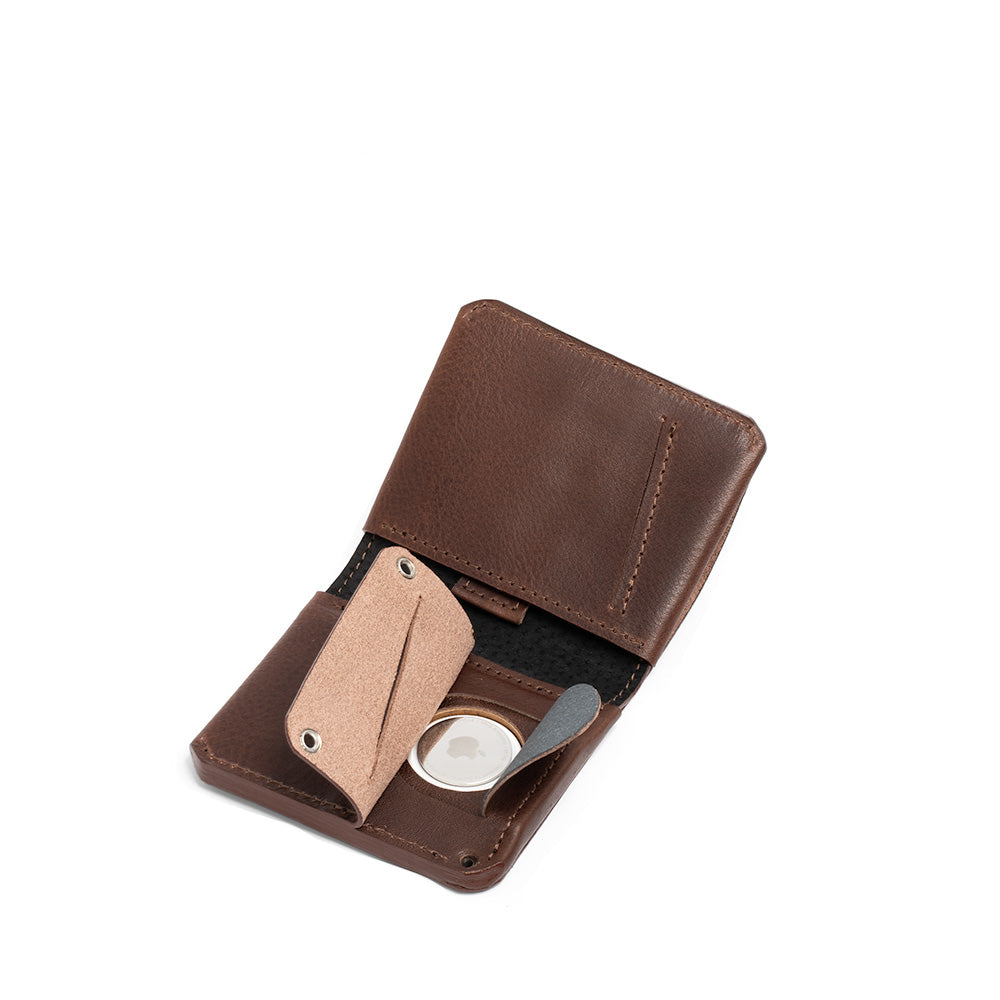
Geometric Goods' AirTag Wallets are designed to make your experience stress-free thanks to a secret AirTag pocket.
Does AirTag 2 improve this?
To a degree, yes. Apple says the newer AirTag has a longer Bluetooth range and supports Precision Finding from up to 50 percent farther away than the previous generation.
That can make nearby recovery easier, but it does not change the core logic of Find My. Even with the newer AirTag, the app still depends on the Find My network for fresh location updates when the item is far away.
Bottom line
If your AirTag seems to be in the wrong place, start by assuming the simplest explanation: Find My may be showing the last known location, not a live one.
Then work through the practical checks that matter most: timestamp, Notify When Found, Play Sound, Find Nearby, Location Access, battery status, and finally reset if needed. That is a much more reliable path than chasing vague Bluetooth myths.